

AI Video Generator: turn text or a photo into video
Write what should happen on screen, or upload a photo to start from, and get back a short video. Veo 3.1 Lite, Veo 3.1 Fast, Veo 3.1, MiniMax H3 Max Turbo and MiniMax H3 Max all run in the generator below, and four of them generate sound with the picture. Pick the model that fits the clip.
Production preview
Three ways to start a video
The same generator takes a sentence, a photo or a long script. Here is what each start point gives you.
From a sentence: a whole scene, in order
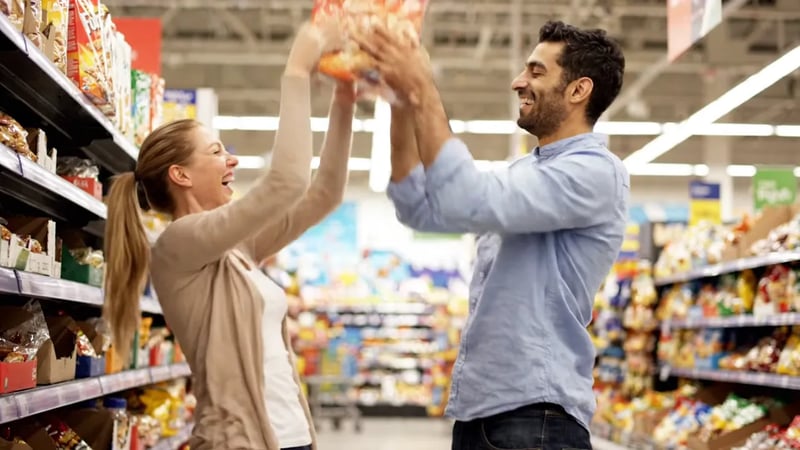
Veo 3.1 Lite, text to video. Prompt: "A tall guy in a grocery store reaches for the last box of cereal on the top shelf — just as a woman on her tiptoes stretches for the same box from the other side. They both grab it at the same time, look at each other, then burst out laughing." Watch the beats play out in the order the prompt wrote them — reach, grab, laugh — with the handheld look it asked for. Start here when all you have is an idea.
From a photo: the picture you have, now moving
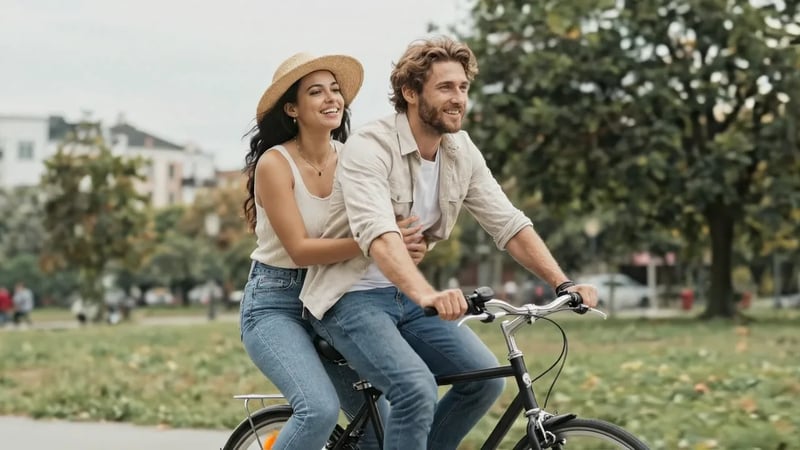
Veo 3.1 Lite, image to video. A photo of a couple on a bicycle is the first frame, and the prompt adds the motion: "Camera pulls back in a wide tracking shot… The woman's hat brim flutters, she turns slightly to look at him." The faces, clothes and park come from the photo. Use this for a product shot, a portrait or a location you already have.
From a long script: one 15-second take
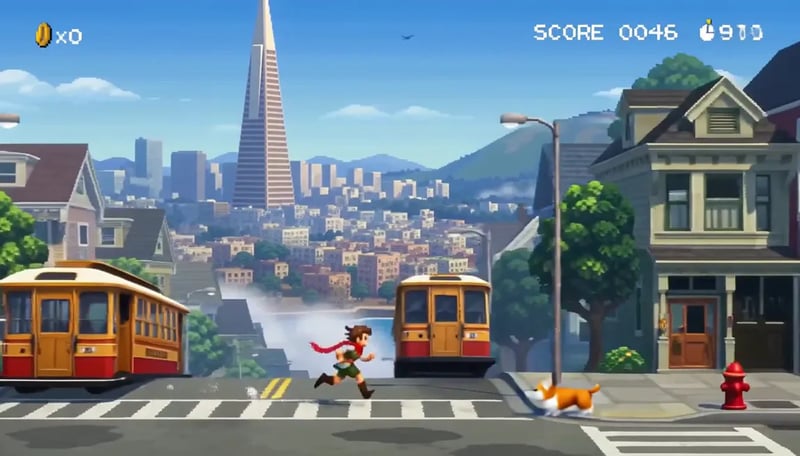
MiniMax H3 Max, text to video. The prompt describes a pixel-art side-scroller set in San Francisco — a hero who jumps a corgi and a scooter and ducks under a drone — and the clip runs 15 seconds with chiptune sound. When a scene needs more than one 8-second Veo clip, MiniMax H3 Max can make it in a single take.
Text to video, image to video, or reference images?
Pick the start point by what you already have.
Text to video
You have an idea but no picture. Describe the subject, the action, the camera and the sound, and the model builds the whole scene.
Image to video
You have the frame you want to open on: a product photo, a portrait, a still you made with an image model. The photo becomes the first frame and the prompt says what moves.
Start and end frames
You know where the shot begins and where it has to land, such as a before-and-after or a product reveal. Upload both frames and the model fills in the motion between them. Every Veo 3.1 tier and both MiniMax models accept an end frame.
Reference images
You need the same character, product or place in a new scene. Veo 3.1 Fast takes up to three reference images; MiniMax H3 Max takes a reference set of up to nine.
Which AI video model to use
The three Veo tiers all run Google's Veo 3.1 and make the same kind of 8-second clip; they differ in detail and price. Pick a MiniMax model when you want more than 8 seconds in one take, or Turbo for low-cost drafts at 480P.
| DefaultVeo 3.1 LiteDrafts and everyday clipsGenerate | Veo 3.1 FastMore detail at a moderate cost | Veo 3.1The final, most detailed shot | MiniMax H3 Max TurboLow-cost drafts, up to 15 s | MiniMax H3 MaxLong takes with sound | |
|---|---|---|---|---|---|
| Starts from | Text, photo, start + end frame | Text, photo, start + end frame, reference images | Text, photo, start + end frame | Text, photo, start + end frame | Text, photo, start + end frame, reference images |
| Clip length | 8 s | 8 s | 8 s | 5–15 s | 5–15 s |
| Sound | Yes | Yes | Yes | No | Yes |
| Frame | 16:9 or 9:16 | 16:9 or 9:16 | 16:9 or 9:16 | Six ratios from 21:9 to 9:16 | Six ratios from 21:9 to 9:16 |
| Credits for a 1080p clip | 35 | 65 | 255 | 50 (5 s) | 150 (5 s) |
The Veo models, one page each
Go deeper on the model you are choosing, with examples and a generator set to that model.
What to put in a video prompt
A good prompt answers the questions a director would. Write them in plain sentences; English gives the most predictable results.
Who does what
Name the subject and the actions in order: "reaches for the box, grabs it, bursts out laughing". A sequence of beats gives the model more to follow than a string of adjectives.
Where the camera is
"Slow push-in", "handheld", "wide tracking shot", "orbits slowly around her". One camera move per clip keeps the shot easy to read.
Light and look
Time of day, light source and texture: "golden hour", "fluorescent supermarket lighting", "35mm film grain".
What we hear
Veo 3.1 and MiniMax H3 Max generate sound with the picture. Name the ambience and the effects, and put spoken lines in quotes.
For a photo, only the change
The photo already shows the subject and the setting. Spend the prompt on what moves and what the camera does.
AI video generator FAQ
Veo 3.1 Lite. It is the default in the generator and the cheapest way to test an idea. Once a prompt works, run it on Veo 3.1 Fast or Veo 3.1 for a more detailed take. Each run is a new take, so expect it to be close to the draft, not identical.
New accounts get 30 free credits, enough for one Veo 3.1 Lite clip at 720p. More credits come with a plan or a credit pack.
Its Veo models run Veo 3.1, the version Google released after Veo 3 and now offers in its place. You write the same kind of prompt and get the same kind of clip with sound, and Veo 3.1 follows the prompt more closely. The Veo 3 page covers what changed.
Yes. Choose image to video and upload the photo as the first frame; you can add an end frame too. On Veo, photos of adults work, and photos of children are blocked by Google's safety rules.
Veo 3.1 clips are 8 seconds. MiniMax H3 Max and MiniMax H3 Max Turbo make 5 to 15 seconds in one take.
Yes. Every video model here can make 9:16. With image to video on MiniMax, the clip takes the shape of your start frame, so use a vertical photo.
Make your first AI video
Start from a sentence or a photo. The generator opens on Veo 3.1 Lite.